
Feature / Layer Comps
Layer Comps
Save layer visibility as named variations in Solstice. Switch between alternatives, organize your comps, and export the versions you choose.
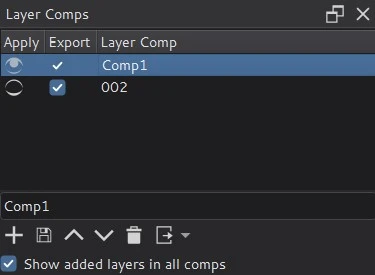
Keep alternate backgrounds, outfits or finishing layers in one document. A comp records which layers are visible, so you can revisit a variation without manually toggling every layer.
Open Settings > Dockers > Layer Comps. This extends the former Compositions docker, retaining existing saved compositions and workspaces.
Save and switch variations
- Set up visibility in the Layers docker for the first variation.
- Enter a name in Layer Comps and click Add. An empty name receives a number automatically.
- Change layer visibility, then add another named comp.
- Click a comp's eye or double-click its name to apply it. The previous/next buttons step through the list; Up/Down also applies rows while the list has focus.
The eye marks a comp that matches the current layer visibility. Applying different visibility is one Undo step. Comps also restore group expansion, although expansion changes are not part of Undo.
Keep a custom state
If you manually change visibility before applying a comp, Last Layer Display State remembers that custom state. Apply it to return to your previous arrangement. Switching between saved comps keeps it available; a later custom state replaces it when you apply another comp.
This is a temporary return point shared by views of the same document. It is not saved to disk or included in exports.
Update and organize
- Overwrite updates selected comps with the current layer state.
- Ctrl/Shift-click names to select several comps. Drag rows to reorder them as a group.
- Use the context menu's Rename Composition to rename a comp, or Delete to remove selected comps. Multiple-item overwrite and delete operations ask for confirmation.
Comp list edits are saved with the document, but are not undoable. Selecting rows and checking their Export boxes are separate actions.
Choose how new layers behave
Show added layers in all comps determines how newly added layers are recorded in existing comps. It is on for new documents and off when loading older files to retain their previous behavior. Changing the option does not rewrite existing records or change the new layer's visibility on the canvas.
Export selected versions
- Check the Export box for each comp you want to export.
- Use the export button or its menu for the PNG image and animation export options.
- The export restores the open image's previous state when finished.
PNG export blocks the interface while it runs and cannot be canceled.
What a comp stores
Comps store visibility and group expansion. They do not store opacity, blend modes, positions or pixel contents. Use separate layers for visual alternatives, then save their visibility combinations as comps.
Save the document as .kra to keep the comps. The records remain readable by Krita, but Solstice's new-layer policy may be lost when resaving in another application. PSD layer-comp import and export are not supported.