
Feature · Puppet Warp
Puppet Warp in the Transform Tool
Pose characters and reshape raster artwork in Solstice with pins you can move and rotate, in a Transform Tool mode modeled on Clip Studio Paint's Puppet Warp.
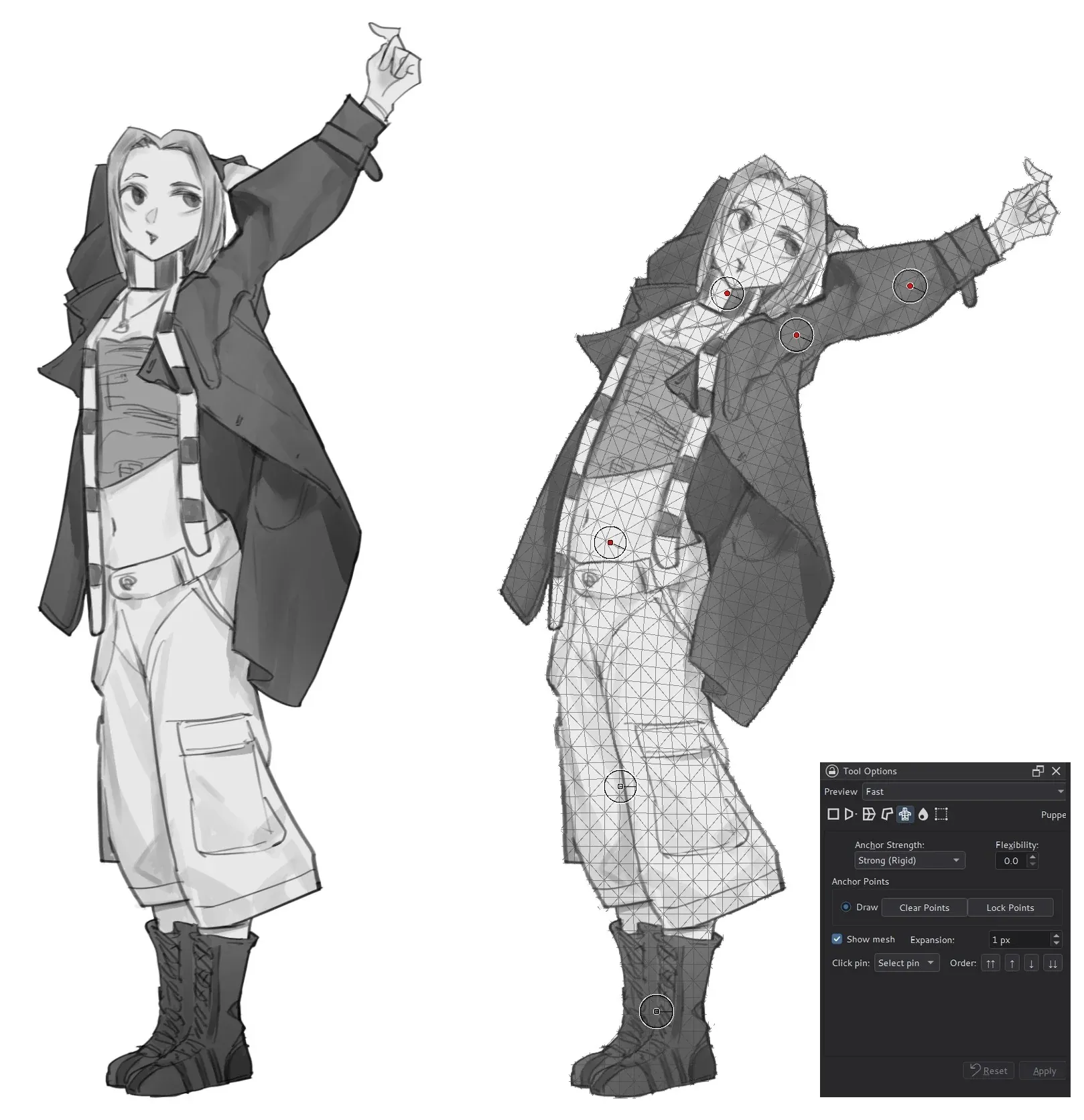
Puppet Warp covers the artwork with a triangle mesh that follows its shape and fills closed line art. Pins on the mesh act as joints: move a pin to drag that part of the figure, or turn its ring to rotate the part beyond it, so an arm or a head can be re-posed without redrawing.
How to use it
- Select the layer, several layers, a group or a selection to transform.
- Choose the Transform Tool and its Puppet mode.
- With Draw active, click to place pins at the joints and at the areas that should stay put.
- Click Lock Points.
- Drag a pin's center to move it, or its outer ring to rotate around it. Alt-click removes a pin.
- Apply the transform as usual.
How the artwork bends
- Untouched pins hold the area around them in place.
- Rotating a pin turns the free part beyond it as one piece, like a forearm swinging at the elbow.
- Separate parts, divided by empty space, move independently.
- Several pins can be selected with Shift-click or a rectangle and moved or rotated together.
- Order buttons choose which part is drawn on top where moved parts overlap.
Layers and speed
Several layers or a group are warped together but stay separate layers. On 16-bit and 32-bit float layers the final result is rendered by the GPU engine: about 0.2 seconds instead of 0.75 on a 2480 × 3508 layer with three pins.
Limitations
- An opaque background makes the mesh cover the whole layer.
- Mesh cells are about 24 pixels, so limbs closer than that can pull on each other.
- Folding a joint 90 degrees or more can leave a gap beside it.
- There are no per-pin strength or influence options.