
Feature 09 / Reference Tool
Reference Tool
Adjust reference images with editable, non-destructive filter stacks. Save a combination as a template and reuse it across images and documents in Solstice.
New in Solstice 0.4.0. Simplify values, soften details or explore a look while keeping your reference in place. The original image, position, size and rotation stay intact.
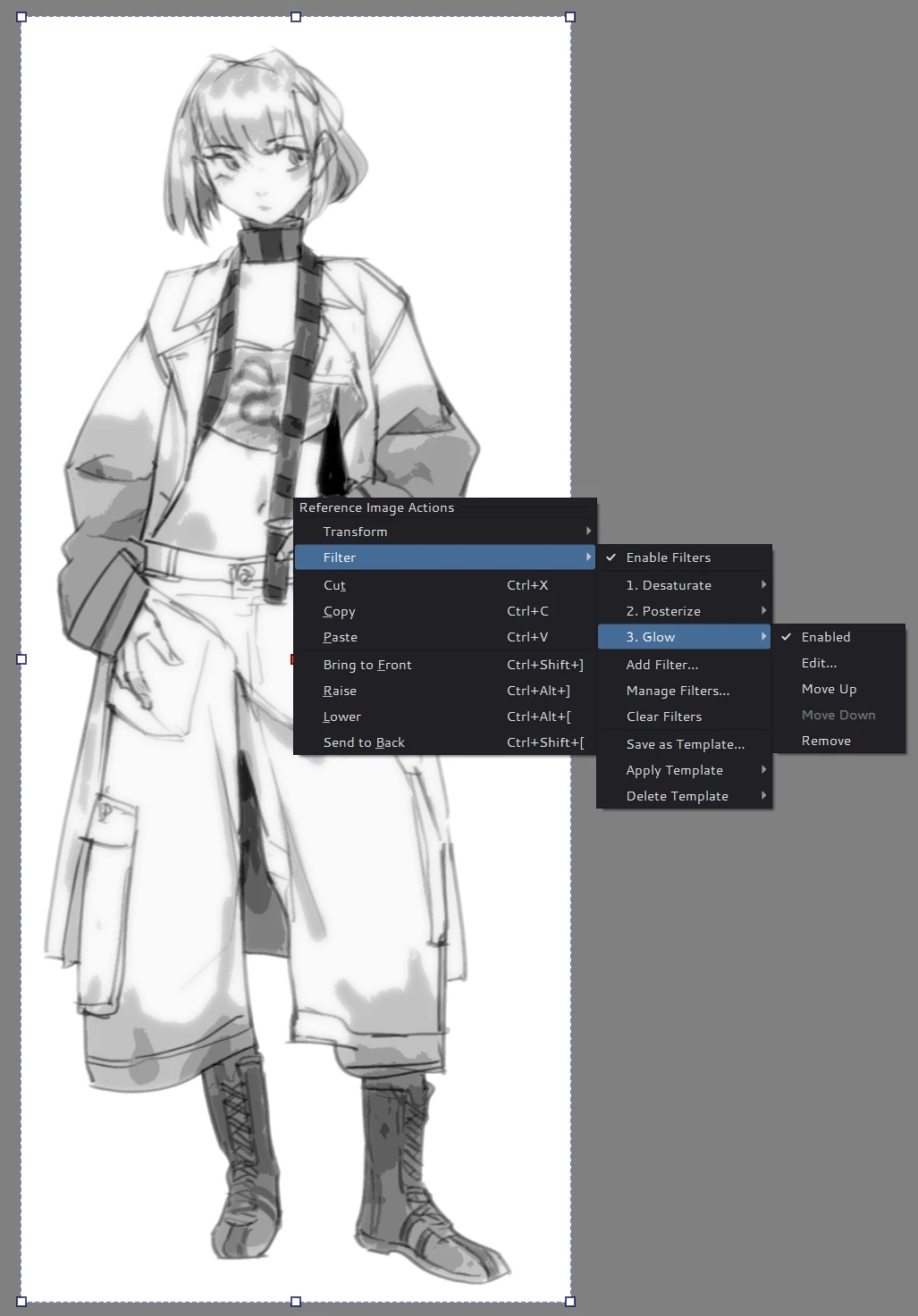
Build a stack, keep the original
Select one image with the Reference Images Tool, then right-click and choose Filter → Add Filter…. Add several native effects, including the same filter more than once. They run in the order shown.
Manage Filters… brings the list and settings together with a combined canvas preview. Edit, reorder, disable or remove any effect. OK commits the edit; Cancel restores the previous stack. Stack changes support Undo.
Compare with a click
Turn off Enable Filters to bypass the whole stack without losing its settings. Or disable just one effect to see what it contributes. The reference stays in place throughout.
One look, many references
Choose Save as Template… to capture effect order, settings and enabled states. On another image—even in another document—choose Apply Template. The saved library remains available after restarting Solstice.
Applying replaces the target's stack and can be undone. Each image keeps its own copy, so editing or deleting the template later does not change images already using it.
What is included
Native mask-compatible filters are supported; G’MIC is separate. Stacks travel with .kra and .krf files, while named templates live in your Solstice profile. Effects stay inside the original image bounds. Saturation and Opacity remain separate controls.
See the detailed filter guide for template management, resource requirements and compatibility limits.