
Ported plugin / Quick Access Manager
Quick Access Manager
Keep brushes, actions and dockers in one palette, switch them with keyboard-and-mouse gestures, and adjust the brush and color from compact dockers and popups in Solstice.
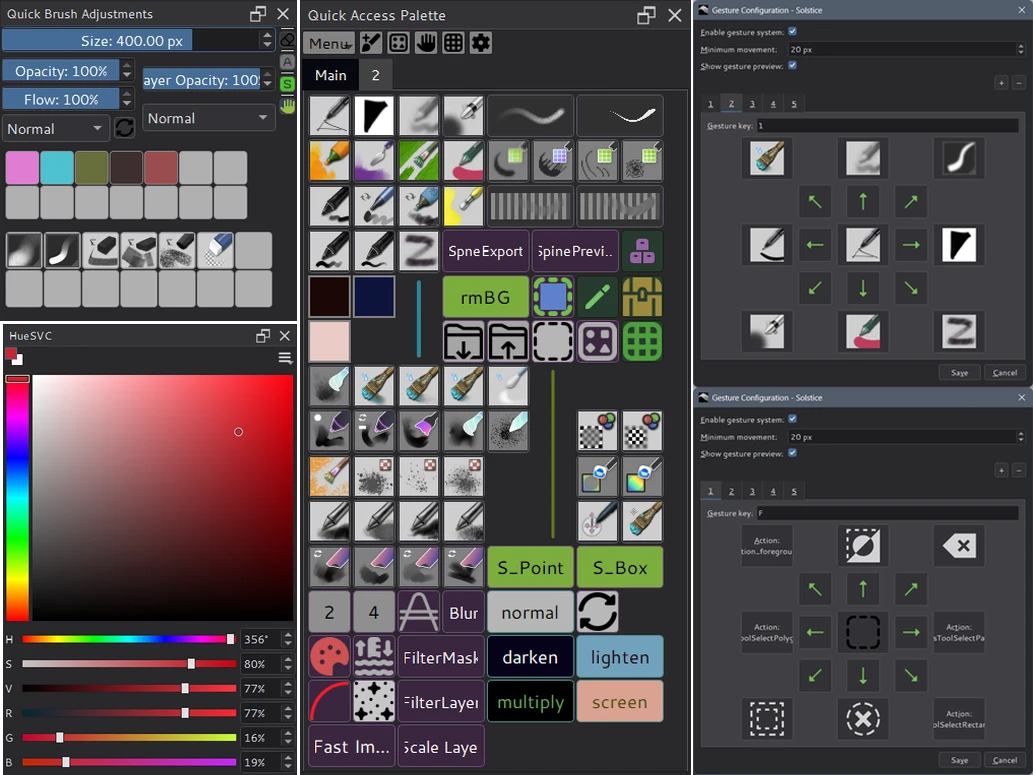
Quick Access Manager began as a Python plugin that brought Clip Studio Paint’s Quick Access palette to Krita. In Solstice it is built in and rewritten in C++, so no Python installation is needed, and it replaces the right-click Popup Palette and the On-Canvas Brush Editor. Open its dockers from Settings > Dockers.
Quick Access Palette
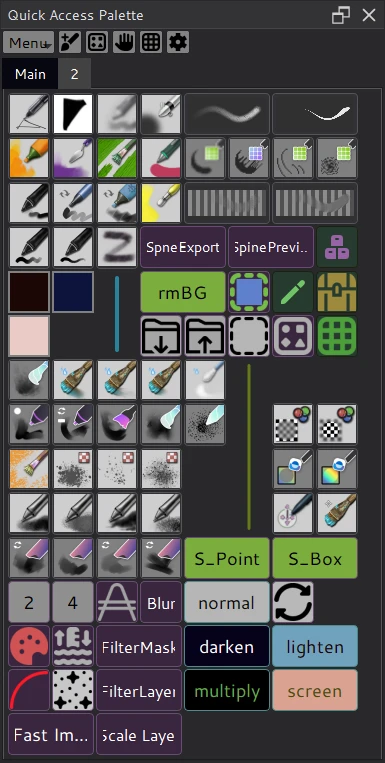
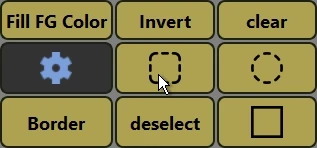
A grid of items in tabs: brush presets, actions, dockers to show or hide, colors, brush sizes, brush blending modes, Python scripts, labels and separators.
- Add brushes, actions and dockers from the Resources dialog. Its Brushes tab has the stroke previews, filters and grouping of the Brush Presets docker.
- Brushes show their stroke previews; give an action or docker a custom name, icon and colors that every item and gesture shares.
- Ctrl + drag an item to move it. Edit Grid selects, moves, resizes and copies several items between tabs, with Undo.
- A shortcut opens the palette as a popup at the cursor. Pin it to keep it open.
Gestures
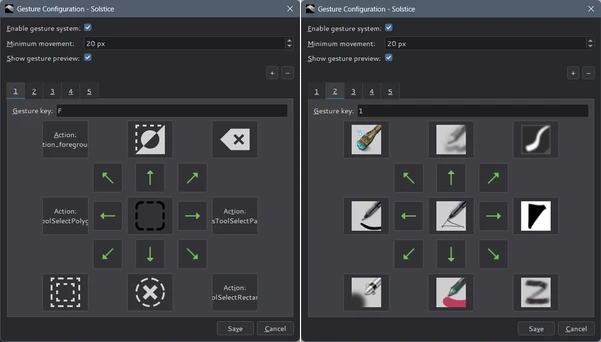
Hold a key, move the mouse in one of eight directions and release to switch brushes, run an action or show a docker. Releasing without moving runs a ninth, center action.
- Each gesture page has its own key, so several sets of nine actions are available.
- The minimum movement sets how far the mouse must travel before a direction counts.
- An overlay around the cursor shows each direction’s action while the key is held.
Changes apply as soon as you save; no restart is needed.
Quick Brush Adjustments
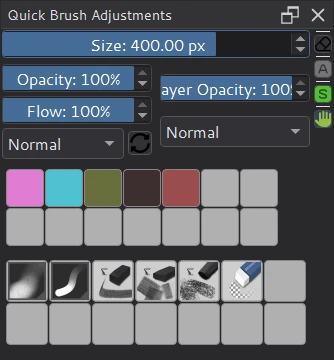
Brush size, opacity, flow and blending mode, the active layer’s opacity and blending mode, and recent colors and brushes, all in one docker. The bars are the same controls as Tool Options.
- Temporary keys: hold a key for eraser mode, preserve alpha or the Freehand Selection tool; release it to go back.
- Temporary brushes: hold a key to switch to another brush, with its size scaled from your current one, and release to return.
- Floating Tool Options: show Tool Options in a panel beside the docker.
HueSVC
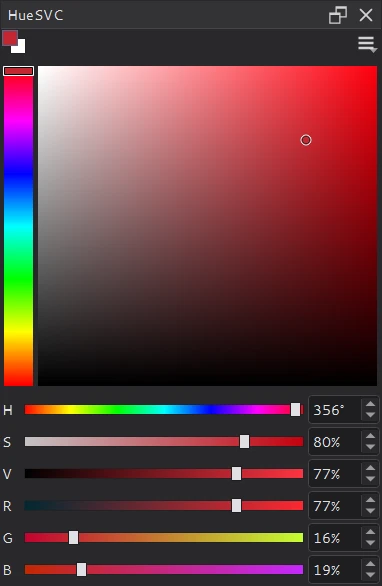
A compact color selector: a hue bar or ring, a saturation/value square and bars for H, S, V, R, G and B. Click the small swatches at the top left to swap the foreground and background colors.
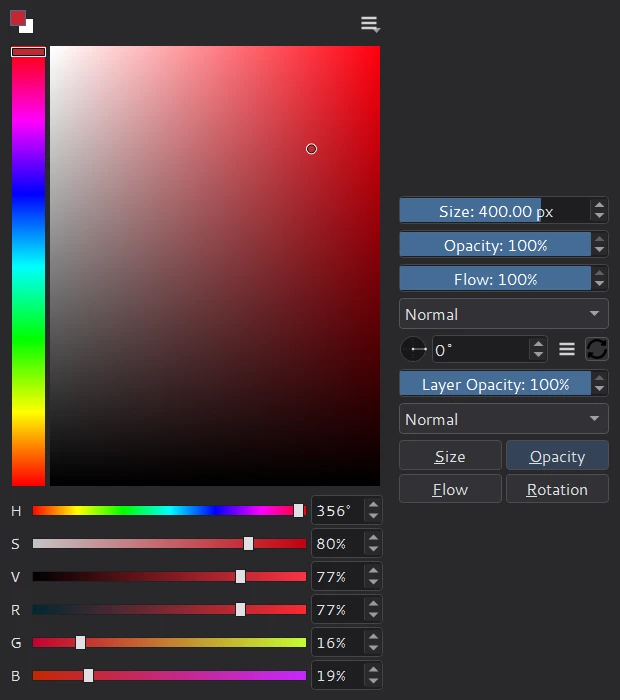
The HueSVC Popup shortcut opens it at the cursor with a panel of brush and layer controls, the brush rotation dial and pressure toggles. It closes when the pointer leaves.
Coming from the Python plugin
Palette profiles, aliases, labels, colors and icons saved by the Python plugin still load. Temporary keys and brushes work per window when several windows are open. The full guide on GitHub covers every item type, setting and shortcut.